Best Galaxy Wallpapers for iPhone
Real nebulae and galaxies worth knowing by name, the difference between telescope astrophotography and AI-generated space art, and how to compose either around the iPhone clock.
Most “galaxy wallpaper” searches return generic purple starfields with no sense of what’s actually being depicted. That’s a missed opportunity, because space imagery is one of the few wallpaper categories backed by real, named, photographed objects — and knowing a few of them by name makes it much easier to search for, generate, or just appreciate what you’re looking at.
The objects people are actually picturing
A handful of real astronomical targets account for most of what shows up in “galaxy” and “nebula” image searches:
The Orion Nebula (M42). Visible to the naked eye as a fuzzy patch below Orion’s belt, and one of the most photographed objects in astronomy because it’s bright, close (by cosmic standards — about 1,344 light-years away), and genuinely spectacular through almost any telescope. Its characteristic look is a billowing, pink-and-orange gas cloud around a cluster of young, hot stars.
The Carina Nebula. A southern-hemisphere nebula famous for the “Pillars of Creation”-style towering gas structures, made newly iconic in 2022 when the James Webb Space Telescope released its “Cosmic Cliffs” image of Carina’s edge — a warm, amber, almost mountainous-looking wall of gas and dust that circulated everywhere online that year.
The Pillars of Creation, specifically. These are actually in the Eagle Nebula, not Carina, and they’re probably the single most recognizable deep-space image in pop culture — tall, finger-like columns of gas and dust, originally photographed by Hubble in 1995 and re-photographed by James Webb in near-infrared in 2022, which revealed a completely different, more translucent version of the same structure. When someone describes wanting a “those space pillars” wallpaper, this is almost always what they mean.
The Andromeda Galaxy (M31). The nearest large spiral galaxy to our own, visible as a faint smudge to the naked eye in dark skies, and the default image whenever someone wants “a galaxy” rather than “a nebula” — a clean spiral disc, usually shown nearly edge-on with a bright, dense core.
The Whirlpool Galaxy (M51). A smaller, more dramatically face-on spiral with a clearly visible companion galaxy tugging at one of its arms — the galaxy photo that actually shows the swirling arm structure most people picture when they hear the word “galaxy,” since Andromeda’s real orientation from Earth doesn’t show its spiral shape nearly as clearly.
Real astrophotography vs. illustrated or AI-generated space art
Both are legitimate choices for a wallpaper, but they do different jobs, and it’s worth being honest about the distinction rather than treating “space image” as one category.
Telescope photography — Hubble and James Webb’s public image releases are the two most common sources, both free to use (NASA imagery is in the public domain) — captures something that actually exists, at a specific real moment, through genuinely difficult engineering. The color in these images is usually not “true color” in the way a snapshot is: telescopes often capture different wavelengths (including infrared, invisible to human eyes) through separate filters that are then mapped to visible colors afterward, a process called chromatic translation, so that gas composition and structure become visually readable. That gold-and-teal James Webb palette you’ve probably seen everywhere isn’t artistic license so much as it is a translation convention — but the structures themselves (the pillars, the nebula’s shape, the galaxy’s arms) are real and unaltered.
AI-generated or illustrated space art isn’t trying to represent anything that exists — it’s building a mood: a denser, more saturated nebula, an impossible number of visible stars, a galaxy positioned exactly where you want it in the frame. This is the better choice when you want full control over composition (placing a bright core precisely in the lower third, for instance) rather than working with whatever a real photograph happened to capture.
Neither is more “correct” for a wallpaper — but if realism and the sense of looking at something that genuinely exists matters to you, go to NASA’s or the Space Telescope Science Institute’s public image archives directly rather than a generic stock search, since a surprising number of “Hubble photo” results online are actually recolored illustrations.
Composing around the clock without losing the drama
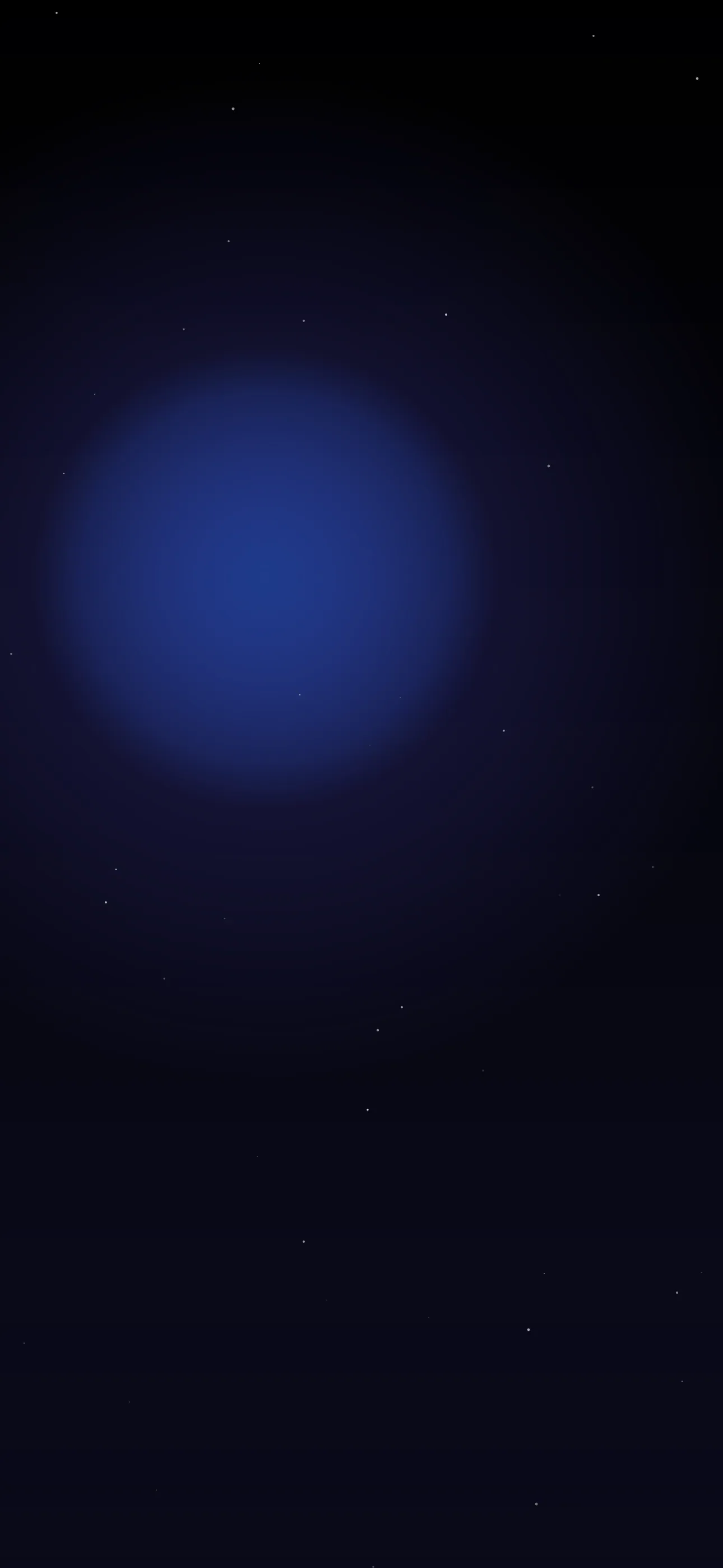
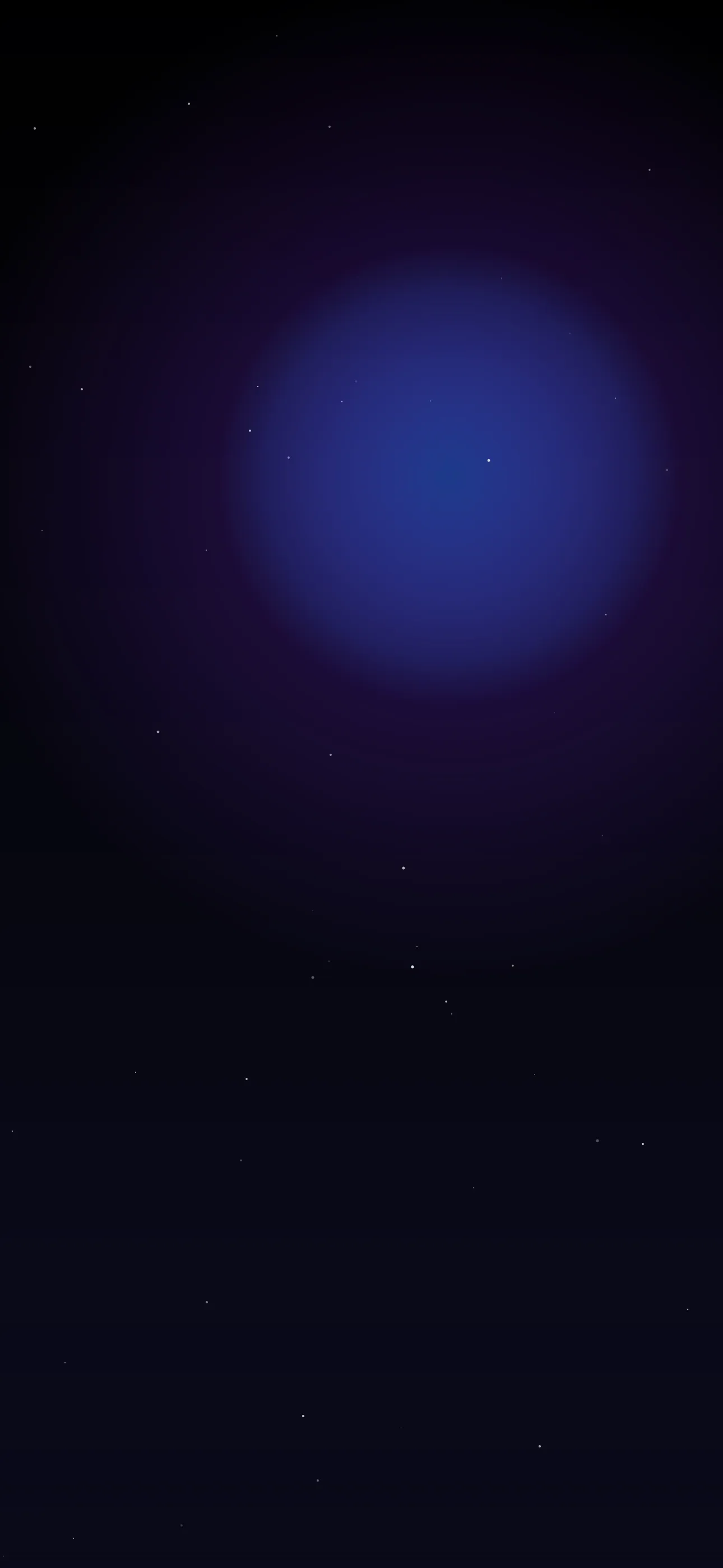
Space images are unusually easy to compose around, because the emptiest part of any of them — the plain black sky away from the nebula or galaxy — is also the simplest. The practical rule: keep the brightest, densest part of the image (the nebula’s glowing core, the galaxy’s bright center) out of the upper-middle third, where the iPhone clock sits, and let it anchor the lower half instead, near the widget row. A scattered starfield with no single bright feature is close to foolproof here — fine points of light never compete with the time for attention the way a dense, glowing core does.
For the Pillars of Creation specifically, or any single galaxy shot like Andromeda or Whirlpool, the subject usually reads best pushed to one side or the bottom third rather than dead-center — this both respects the clock zone and tends to produce a more dynamic composition than a perfectly centered subject would.
Why OLED and deep space were made for each other
This isn’t a stretch of a comparison — it’s a genuine hardware match. Every iPhone 14 Pro and later, plus recent base models, uses an OLED panel, where each pixel generates its own light rather than being lit from behind by a backlight. A pixel told to display pure black simply switches off and emits nothing. Real space is, for a camera, almost entirely pure black background punctuated by small bright points — which means a space wallpaper on OLED is one of the few image categories where the screen is doing meaningfully less work (and drawing meaningfully less power) than it would for an equally dark-looking photo of, say, a forest at night, which still has to render subtle variation across most of the frame. The visual payoff matches the technical one: the phone’s bezels effectively disappear against a genuinely black sky, and stars read with real contrast rather than looking washed into a dark-gray background — which only happens if the source image has a true #000000 sky rather than a compressed, slightly-lifted near-black.
Depth Effect works on one galaxy, not on the Milky Way
iOS’s Depth Effect needs a single, clean-edged foreground subject to lift in front of the clock — the same segmentation approach used in Portrait Mode photography. A sweeping Milky Way band or an all-over starfield gives it nothing to isolate, since there’s no single object, just texture. A single spiral galaxy (Andromeda or Whirlpool-style, shown as one discrete disc against black) or an isolated nebula shape is a much better candidate — iOS can plausibly treat it as “the subject” and layer it forward. If the 3D layered look matters to you, choose one isolated object over a full-sky composition.
Keeping the fine detail intact
Both real astrophotography and generated nebula art are made of extremely fine structure — individual stars, wisps of gas, subtle color gradation — and all of that is the first thing to disappear when a small image gets stretched to fill a screen. Source or generate at native panel resolution (1290 x 2796 on the current 6.7-inch and 6.9-inch models) rather than upscaling a thumbnail; a downscaled Hubble image saved from a search result is the single most common way a galaxy wallpaper ends up looking like a smudge instead of a photograph.
Making your own
The AI generator can name real objects directly and generally interprets them reasonably — try “Carina Nebula-style gas pillars, warm amber and teal, dark sky at the top, lower third” or “single spiral galaxy like Andromeda, bright core in the lower frame, true black sky” — or go fully invented with “dense galactic core, purple and gold, scattered stars, true black upper third for the clock.” The editor helps afterward with deepening a sky toward true black or repositioning a bright core away from the clock zone. For real NASA and James Webb imagery specifically, the agency’s own public image archives are free to use and a better source than a generic stock search. Wallpaper Hub’s dark collection overlaps heavily with this look, and the broader cosmic/sci-fi style family lives in the styles and aesthetics guide.
FAQ
What’s the actual object in the famous “space pillars” wallpaper? The Pillars of Creation, inside the Eagle Nebula — first photographed by Hubble in 1995 and re-imaged by James Webb in 2022, which revealed a more translucent structure using infrared light.
Why do Hubble and James Webb photos use such different colors for similar objects? Both telescopes often capture wavelengths outside visible light, including infrared, then map that data to visible colors afterward so the structure is readable — the resulting palette is a translation convention, not artistic guesswork, though it does vary by telescope and processing choices.
Is a real NASA photo better than an AI-generated galaxy image for a wallpaper? Neither is objectively better — a real photo captures something that actually exists, which appeals if that matters to you, while an AI-generated image gives you full control over composition and color. Both can look equally sharp at native resolution.
Does a full Milky Way band work with Depth Effect? Rarely — it’s texture without a single isolated subject, so iOS has nothing clean to lift forward. A single discrete galaxy or nebula shape against plain black is a much better candidate for the layered look.
Wallpapers from Wallpaper Hub
Full gallery