Best Gaming Wallpapers for iPhone
A guide to gaming wallpapers for iPhone — neon and sci-fi looks, clock placement, OLED black, widget contrast, native resolution, and how to generate your own.
Gaming wallpapers bring energy to a lock screen — neon glow, sci-fi worlds, controllers, pixel art, and HUD-style overlays. The look is bold and high-contrast by nature, which is great for impact but tricky for legibility, since the same explosions of color that make a gaming wallpaper exciting can also bury the clock. This guide covers the gaming aesthetics worth knowing and how to compose or generate one that stays punchy and readable on an iPhone. A quick note: speaking generally about looks and motifs keeps you clear of copyrighted game art and logos — original neon, sci-fi, and pixel-style imagery gives the same vibe without borrowing anyone’s assets.
What defines a gaming wallpaper
Gaming visuals share a handful of traits: saturated, glowing color; a sense of motion or energy; tech and sci-fi motifs; and often a dark base that makes the highlights pop. Whether it’s a neon-lit cityscape, a pixel-art scene, or a sleek controller on black, the look reads as “play” — vivid, a bit futuristic, and unmistakably digital.
Gaming sub-styles
- Neon and cyberpunk — glowing signs, rain-slick streets, electric color on near-black.
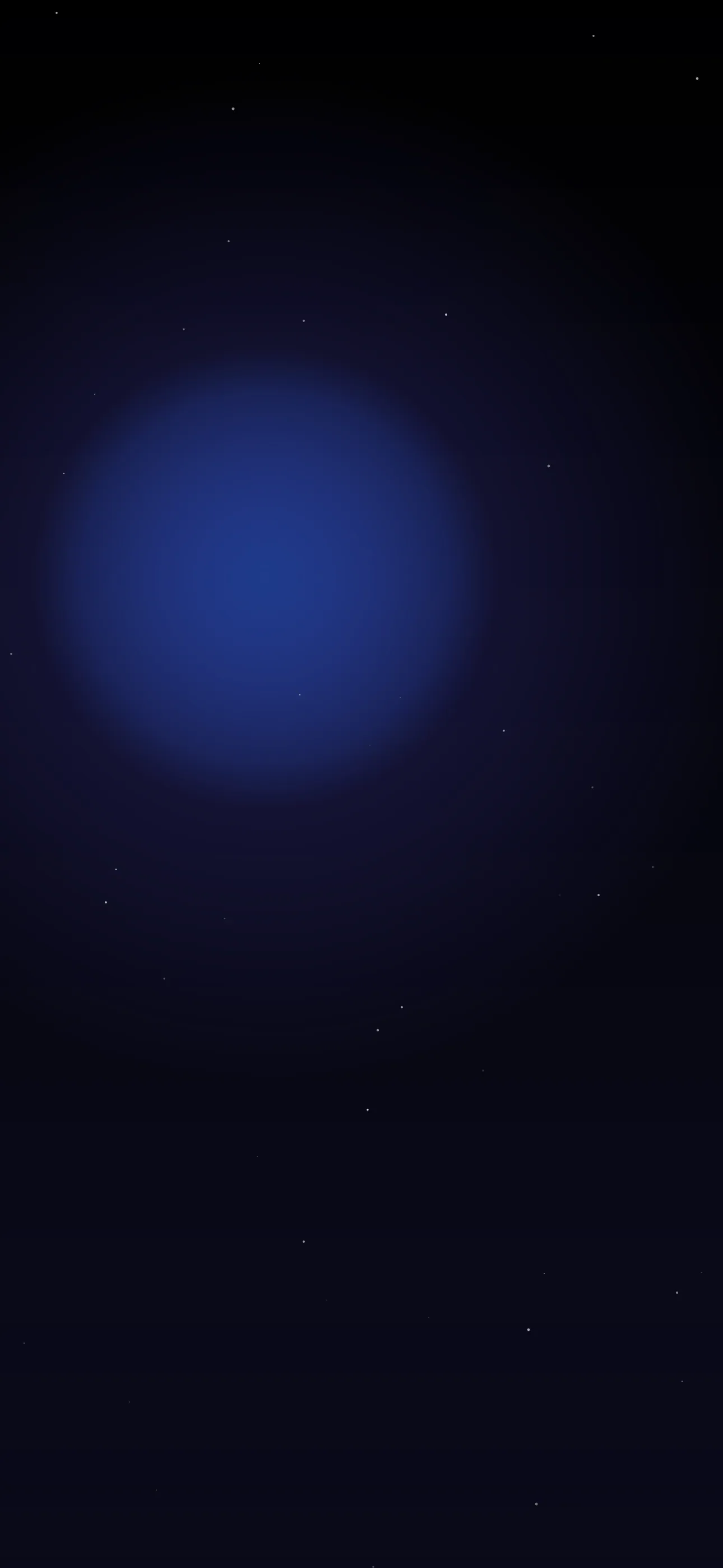
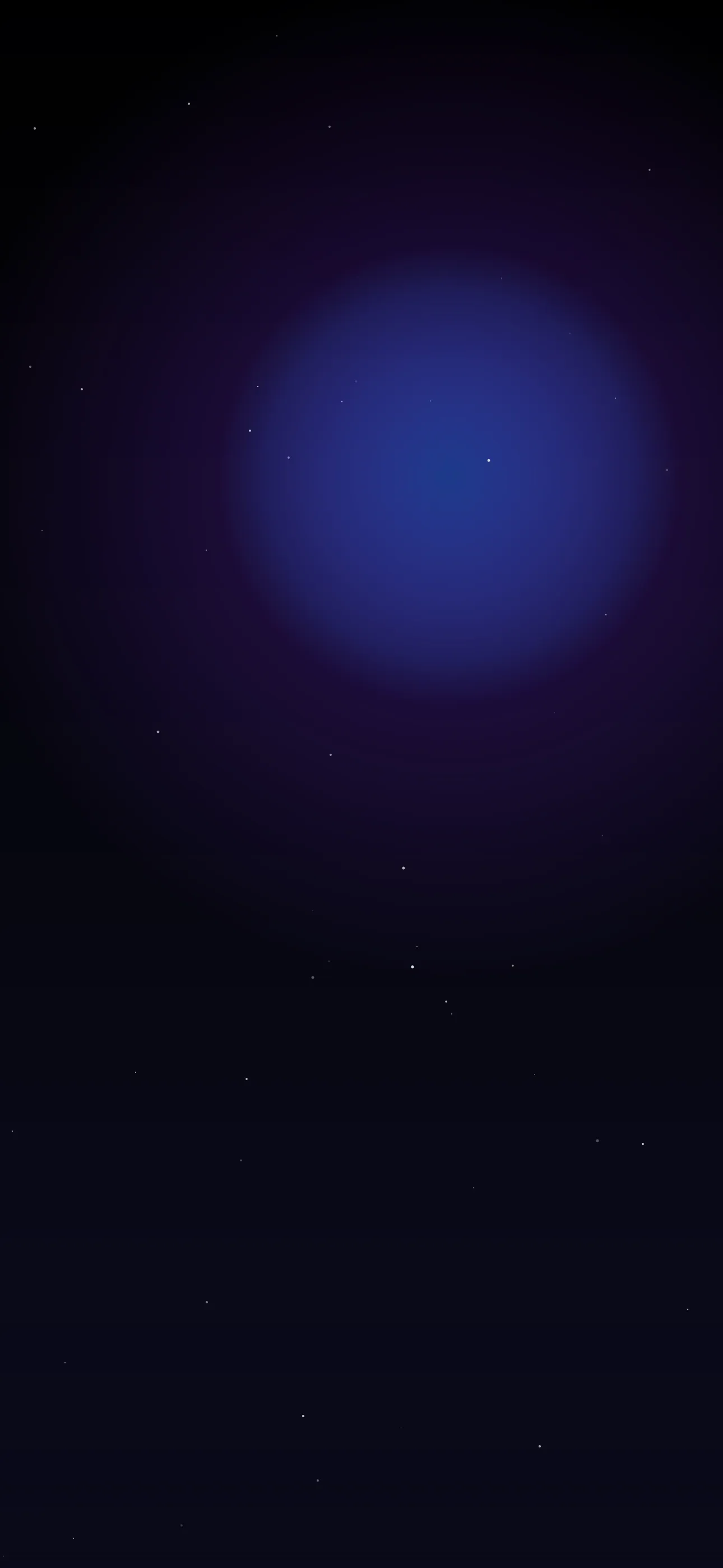
- Sci-fi and space — starfields, planets, ships, and HUD overlays.
- Pixel and retro arcade — chunky pixel art and 8-bit color, nostalgic and graphic.
- Controller and gear — a clean product-style shot of a controller or headset.
- Abstract energy — light trails, particles, and glowing geometry for pure mood.
A nice pairing is one neon cityscape for everyday and one minimal controller-on-black shot for a cleaner day.
Palette and motifs
Gaming palettes love high-contrast neon: electric blue and magenta, acid green on black, hot orange and teal. The recurring motifs — circuitry, glowing edges, scan lines, particles, pixel grids — give a gaming set a shared digital language. A dark base with one or two glowing accent colors usually reads more striking, and more legible, than an all-over rainbow.
Composing around the clock and Dynamic Island
High-energy scenes can drown the clock, so plan the busy areas:
- Keep a darker, calmer zone in the upper-center clock band so the white time cuts through the glow.
- Push the action and brightest detail into the lower two-thirds, around the widgets, so it frames the UI.
- Leave a clean dark patch behind the Dynamic Island so the cutout blends into the scene.
- For cyberpunk cityscapes, a deep night sky at the top naturally leaves room for the clock.
OLED black and why gaming loves it
Neon and sci-fi gaming looks are made for OLED. Modern iPhones use OLED panels where pure-black pixels switch off completely, so neon signs and light trails on a true #000000 background seem to glow out of pure darkness. Keep the dark areas genuinely black rather than dark grey for the strongest effect; the dark style collection and our OLED dark wallpapers guide both lean into this.
Depth Effect and widget contrast
A single clear subject — a controller, a helmet, a single ship on a plain background — can work with the layered Depth Effect, where iOS tucks the clock behind the object for a 3D look. Busy HUD scenes and dense pixel art usually won’t trigger it, so reserve Depth Effect ambitions for clean single-subject images; see our Depth Effect explainer. For widget contrast, keep the brightest neon away from directly under the widget row, or dim that band in the editor so the text stays readable.
Resolution and crisp glow
Neon edges and pixel grids both suffer when an image is upscaled from something too small — the glow smears and pixel art loses its clean blocks. Start from a wallpaper sized for your iPhone (1290x2796 on the current Pro Max) so the highlights stay sharp and the pixels stay square.
Generating and setting a gaming lock screen
In Wallpaper Hub you can browse gaming, neon, and sci-fi wallpapers framed for iPhone, or generate your own — which is also the cleanest way to get the vibe without copyrighted art:
- Use the AI generator — try “neon cyberpunk alley, rain reflections, true black sky at top for clock” or “single sleek game controller, black background, magenta rim light, centered for depth effect.”
- Open the editor to deepen the blacks, calm the clock zone, or crop to the exact screen size.
- Gaming overlaps with the abstract and dark collections; for original art, see how the AI generator works.
FAQ
Do gaming wallpapers work with Depth Effect? Single-subject ones do — a lone controller or helmet on a plain background can trigger it. Busy HUD or pixel scenes usually won’t.
Can I use official game art as a wallpaper? That art is usually copyrighted. Generating original neon, sci-fi, or pixel-style imagery gives the same feel without using anyone else’s assets.
Get Wallpaper Hub on the App Store
Keep one neon scene and one clean controller shot on hand, and your lock screen stays high-energy without losing the clock.
Wallpapers from Wallpaper Hub
Full gallery